





You finally have a modern Android phone that is ready for real travel freedom. You also keep hearing about RedteaGO and eSIM, and how it can save you money and hassle every time you cross a border. You just need one clear guide that shows you exactly how this works on Pixel 8 and the upcoming Samsung S25, without guesswork or tech jargon.
You are not alone. The global esim user base has exploded because people are tired of chasing plastic cards, paying surprise roaming fees, and standing in airport kiosks after long flights. If you are already using eSIM or you are ready to switch, then your priority is simple. You want reliable data on your Pixel 8 or Samsung S25, clear steps to install RedteaGO, and confidence that you can manage multiple lines and roaming settings without breaking anything.
This guide walks you through RedteaGO for Pixel 8 and Samsung S25 from start to finish. You will understand how RedteaGO works, confirm compatibility, prepare your phone, install the eSIM, and fix the most common problems if something does not work on the first try. By the end, you will know exactly how to turn your phone into a flexible global travel tool that just works.
Understanding RedteaGO for Pixel 8 and Samsung S25
What Is RedteaGO and How Does It Work?
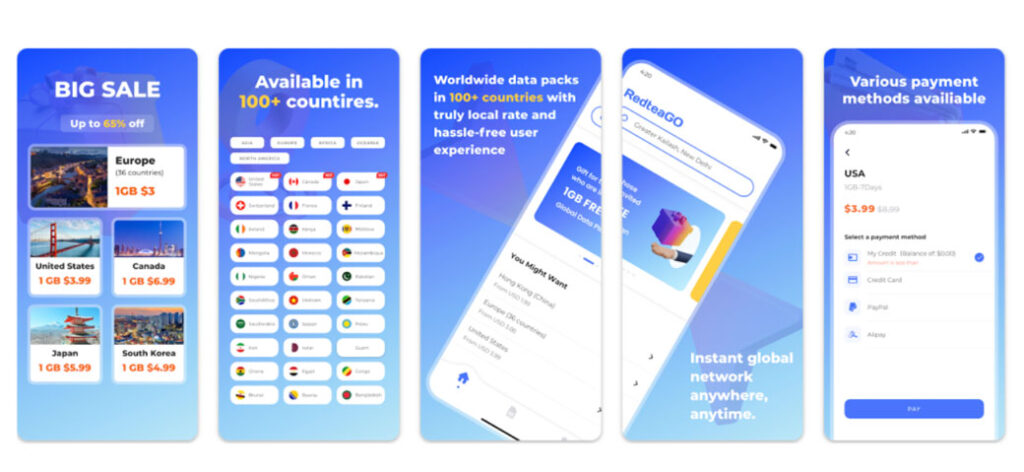
You can think of RedteaGO as a digital bridge between your phone and mobile networks around the industry. Instead of buying a physical SIM at every destination, you buy a RedteaGO data plan online, receive an eSIM profile, and activate it directly on your Pixel 8 or Samsung S25.
You usually follow this simple flow:
- You choose your destination country or region inside RedteaGO.
- You pick a plan based on days or data volume.
- You pay online and receive an eSIM activation method, usually as a QR code or an activation code.
- You add the eSIM in your phone settings and select it for mobile data when you land.
You no longer need to open the SIM tray, keep track of nano SIM cards, or swap them every time you change countries. Your phone stores the eSIM profiles digitally, so you handle everything in a few taps.
eSIM vs Physical SIM on Pixel 8 and Samsung S25
You might wonder if eSIM is really better than the physical SIM you have used for years. On modern phones like Pixel 8 and Samsung S25, eSIM gives you three major advantages.
First, you gain flexibility. You can keep your existing physical SIM for your main number and add RedteaGO as an extra data line. You still receive calls and texts on your local number while using cheap data from RedteaGO abroad.
Second, you get speed and convenience. You no longer wait in a store or at an airport booth. You can buy and install your plan in minutes before you even travel.
Third, you get better organization. You manage multiple lines in software instead of physically changing small cards. Your Pixel 8 and Samsung S25 settings let you name lines, choose which line handles data, and decide which one handles calls or SMS.
You do still rely on your phone supporting eSIM and on your carrier or device being unlocked, but once those boxes are checked, eSIM is usually the better choice for global users like you.
Network Bands and Regional Limitations
You will get the best experience with RedteaGO on Pixel 8 and Samsung S25 when your device supports the right network bands in the countries you visit. Both phones are designed as global flagships, which means they support a wide range of LTE and 5G bands. That is one of the big reasons global eSIM users gravitate to these models.
You still need to pay attention to a few details:
- You should always check the exact region model of your Pixel 8 or Samsung S25. Carrier locked or region exact models sometimes lack certain bands.
- You want to read the RedteaGO plan description for each country. Some plans only cover certain networks or offer LTE only instead of full 5G.
- You should remember that rural areas might have weaker coverage even if the network supports your bands.
You will usually be fine in major cities and popular destinations with a Pixel 8 or Samsung S25, but taking one minute to compare your phone model and RedteaGO coverage before you travel is the smartest way to avoid slow or patchy service later.
Device Compatibility: Does RedteaGO Work on Pixel 8 and Samsung S25?
Checking eSIM Support in Your Phone Settings
You can confirm eSIM support directly in your settings. You do not need to guess or rely on marketing pages.
On Pixel 8 you can:
- Open Settings.
- Tap Network and internet.
- Tap SIMs.
- Look for an option that says Add eSIM or Download a SIM instead.
You know your Pixel 8 supports eSIM if you see that option. You also sometimes see a list of current SIMs that includes eSIM entries.
On Samsung S25 you can expect a similar layout:
- Open Settings.
- Tap Connections.
- Tap SIM manager or SIM cards and mobile networks.
- Check for Add eSIM or Add mobile plan.
You have confirmation that Samsung S25 supports eSIM when this option is present. Modern Samsung S series phones include eSIM as a standard feature, so you should be safe, but verifying in settings takes less than a minute.
Confirming Device Unlock Status
You also need to know whether your phone is unlocked. An eSIM plan like RedteaGO will usually not work on a phone that is locked to a single carrier.
You can check on Pixel 8 like this:
- Open Settings.
- Tap About phone then SIM status.
- Look for Network or Service state. If it shows that your phone works with other carriers or does not display a exact lock, that is a good sign.
You can also insert a SIM from another carrier and see if the phone accepts it, but if you are using only eSIM, this might not be convenient.
On Samsung S25 you will likely:
- Go to Settings.
- Tap About phone.
- Tap Status information and review SIM lock status.
You want it to show that your device is not restricted to one carrier. If you bought your phone directly from Google or Samsung or from an official store at full price, chances are high that it is already unlocked. If you bought your phone through a carrier contract, you might need to contact them to request an unlock before you can use RedteaGO.
Backing Up Important Data Before Switching Plans
You might not think a new eSIM plan is risky, but when you travel or switch lines, you increase the chances of accidental misconfigurations. You do not want to discover that your two factor SMS codes or important contacts are hard to reach because you changed something too quickly.
You can protect yourself with three simple habits:
- You should sync your contacts with your Google account so they are not tied only to a physical SIM.
- You can enable cloud backups for your Pixel 8 or Samsung account backup for Samsung S25 so your basic device settings and apps are safe.
- You might write down or screenshot your current mobile settings before you change anything. That way, if something breaks while setting up RedteaGO, you can quickly restore the old configuration.
You probably will not need these backups, but as a global eSIM user, you know how valuable it is to prevent problems rather than fix them when you are tired at an airport or in a new city.
Preparing Your Pixel 8 or Samsung S25 for RedteaGO
Buying a RedteaGO Plan and Getting Your QR Code
You can start your RedteaGO journey well before your trip. You just need an internet connection and your phone.
You usually follow these steps:
- You visit the RedteaGO site or app and select your destination country or region.
- You compare plans based on your travel length and data needs. Heavy map usage, video calls, and streaming require more data.
- You purchase the plan using your preferred payment method.
- You receive a QR code and sometimes an activation code that you will use in your phone settings.
You want to pay attention to three details when you pick a plan:
- You should confirm the validity period. Some plans start counting down from purchase while others start after activation.
- You want to check whether the plan supports hotspot tethering if you plan to share data with a laptop.
- You should look at whether the plan is country exact or regional. Regional plans can be more convenient if you cross several borders.
You can save the QR code in your email, cloud storage, or files app. You might also print it or open it on another device so your Pixel 8 or Samsung S25 can scan it easily.
Before you add the eSIM, you can also:
- Update your phone to the latest Android version.
- Charge your battery above fifty percent.
- Make sure you have a stable internet connection for the activation process.
You will make your installation smoother when you prepare these small but important details in advance.
Step By Step: How To Install RedteaGO on Pixel 8
Adding RedteaGO eSIM Via Pixel 8 Settings
You can install RedteaGO on Pixel 8 in just a few minutes if you follow the right order.
You can do this:
- Open Settings.
- Tap Network and internet.
- Tap SIMs.
- Tap Add SIM.
- Choose Download a SIM instead when asked.
- Select Scan QR code.
- Point your Pixel 8 camera at the RedteaGO QR code you received.
- Confirm the download and activation when prompted.
You might be offered an option to enter an activation code manually if scanning is not possible. You can copy and paste the code from your email or notes to avoid typing mistakes.
Your Pixel 8 will then download the eSIM profile and show it as a new mobile plan in the SIMs list. You can tap the plan and rename it to something like “RedteaGO Travel” to make it easy to recognize.
Configuring Data, Calls, and SMS on Pixel 8
You now decide how RedteaGO fits into your daily use.
You can manage this in Settings → Network and internet → SIMs:
- You choose which SIM is used for mobile data. When you are abroad, you will select your RedteaGO plan for data.
- You pick which SIM handles calls. Many travelers keep calls on their home number and use RedteaGO only for data.
- You set which SIM is used for SMS messages, especially if you rely on two factor authentication tied to your original number.
You can also enable or disable data roaming for each SIM separately. You usually want data roaming off for your home SIM to avoid surprise charges, while leaving it on for RedteaGO since the plan is built for roaming.
You might experiment a bit here. You can start with RedteaGO as data only and keep your main SIM for everything else. If you prefer, you can later test making calls through apps like WhatsApp, Telegram, or similar to reduce traditional voice usage.
Verifying Connection and Speed on Pixel 8
You should verify immediately that RedteaGO works before you walk away from Wi Fi.
You can do this by:
- Ensuring mobile data is toggled on.
- Selecting your RedteaGO eSIM as the active data SIM.
- Enabling data roaming for RedteaGO if required by the plan.
- Turning off Wi Fi temporarily so you know you are really testing mobile data.
You can now open a browser, load a map, or run a quick speed test. You do not need a perfect number, but you should confirm that pages load and maps update quickly enough to be practical.
You also want to check the network indicator. If you see LTE or 5G with reasonable signal bars, you are in good shape. If you see only 3G or an emergency only message, you might need to move to a better coverage area or double check your APN settings later in the troubleshooting section.
Step By Step: How To Install RedteaGO on Samsung S25
Installing RedteaGO eSIM on Samsung S25 Step By Step
You can expect Samsung S25 to follow the familiar Samsung layout for eSIM installation.
You will typically:
- Open Settings.
- Tap Connections.
- Tap SIM manager or SIM cards and mobile networks.
- Choose Add eSIM or Add mobile plan.
- Select Scan QR code.
- Point your camera at the RedteaGO QR code.
- Confirm the download and activation when prompted.
You should see the new RedteaGO plan appear in the list of SIMs in your SIM manager screen. You can tap it and give it a custom name like “RedteaGO” or “Travel Data” for clarity.
You also want to review any prompts about preferred SIMs for data or calls right after installation. Samsung often shows a setup screen that lets you quickly assign roles to the new line.
Choosing Primary and Secondary Lines on Samsung S25
You can configure Samsung S25 to handle multiple lines in a very flexible way.
You can do this inside Settings → Connections → SIM manager:
- You set your primary SIM for calls. Many global users keep their original number as the primary voice line.
- You choose the primary SIM for mobile data. You will select RedteaGO for data when you are abroad.
- You decide whether you want dual SIM always on or similar features that allow simultaneous standby for both lines.
You might find separate switches for data roaming on each SIM. You almost always want roaming disabled on your home SIM and enabled on the RedteaGO eSIM, because RedteaGO is designed to use roaming agreements at predictable rates.
You can also adjust notification labels so you know which line is being used. When you dial or send a message, the phone can display which SIM is active. This helps you avoid accidentally using your expensive home data while traveling.
Managing Multiple Lines, Data, and Roaming Settings
Optimizing Data Usage and Battery for Travel
You probably care about two things when you travel with RedteaGO on Pixel 8 or Samsung S25. You want your data to last, and you want your battery to make it through long days.
You can optimize data usage by:
- Setting data limits or warnings in Android settings to monitor consumption.
- Restricting background data for heavy apps like video streaming services or cloud backup apps.
- Enabling data saver mode to cut down on unnecessary background traffic.
You can improve battery life by:
- Turning off the SIM you are not using if you do not need dual standby during the day.
- Reducing screen brightness and disabling constant location access for apps that do not need it.
- Using Wi Fi when available for large downloads, then switching back to mobile data for on the go tasks.
You might not want to micromanage every setting, but making a few smart adjustments at the start of a trip can mean the difference between comfortable usage and running out of data halfway through.
Switching Between Local SIM and RedteaGO While Abroad
You might want to switch between your home SIM and RedteaGO regularly. Maybe you expect an important call on your original number but still want cheap data from RedteaGO.
You can handle this smoothly on Pixel 8:
- Go to Settings → Network and internet → SIMs.
- Tap the Data preference and choose which SIM should handle mobile data.
- Toggle each SIM on or off depending on whether you want it active.
You can do something similar on Samsung S25:
- Open Settings → Connections → SIM manager.
- Choose the default SIM for calls and data separately.
- Turn off mobile data or the entire SIM if you want to force usage through RedteaGO.
You still receive messages and calls according to how you configure each line. Many global users keep both lines enabled but route data through RedteaGO only. That way you still receive important SMS codes or banking messages on your home number while enjoying low cost local data from RedteaGO.
Common Issues and Troubleshooting Tips
Fixing Activation Errors and QR Code Problems
You might occasionally face errors when adding your RedteaGO eSIM to Pixel 8 or Samsung S25. The most common problems are usually easy to fix.
You can try these steps if activation fails:
- You check that your internet connection is stable during activation. You can switch to a strong Wi Fi network if possible.
- You verify that the QR code is clear and not cropped or blurred. You can zoom in or open it on another device for a cleaner scan.
- You make sure you are not already at the maximum number of eSIM profiles stored on your phone. You might delete an old unused eSIM before adding a new one.
You might also see an error that the plan is invalid in your region. This usually means the exact RedteaGO plan is not meant for the country your phone detects. You can confirm that you purchased the correct destination or wait until you arrive in the country the plan is designed for before activating.
You should also check your phone time and date settings. A wrong date or time zone can sometimes interfere with secure connections used for activation.
What To Do If Data Is Not Working or Is Very Slow
You might sometimes see full signal bars but have no working data or painfully slow speeds. This can be frustrating when you depend on navigation or communication.
You can try the following on Pixel 8 and Samsung S25:
- You confirm that mobile data is enabled.
- You verify that the RedteaGO eSIM is selected as the data SIM.
- You check that data roaming is turned on for RedteaGO.
- You toggle airplane mode on for ten seconds, then off again.
You might need to adjust APN settings if RedteaGO provides a exact APN. You can find this under Mobile network settings on both phones, then create or edit an APN using the values from RedteaGO support.
You also want to consider your location. You may be in a building with poor signal or a crowded area where the local network is congested. You can test by moving to another spot, such as outdoors or closer to a window.
You can run a speed test at different times of day. You often see better performance early in the morning or late at night if the network is busy during peak hours.
When To Reset Network Settings or Reinstall the eSIM
You might reach a point where simple toggles and APN checks do not fix the problem. You can then consider more drastic but effective resets.
You can reset network settings on Pixel 8 by:
- Opening Settings.
- Tapping System.
- Tapping Reset options.
- Choosing Reset Wi Fi, mobile and Bluetooth.
You will lose saved Wi Fi networks and some custom network settings, but you keep your apps and personal data.
You can find a similar option on Samsung S25 under Settings → General management → Reset → Reset network settings.
You may also remove and reinstall the RedteaGO eSIM if something went wrong during activation. You should first make sure you still have the original QR code or activation details. You then delete the eSIM profile from the SIM manager and repeat the installation process from the earlier sections.
You might contact RedteaGO support if problems persist, especially if you suspect the plan itself has an issue or has not been properly provisioned on the partner network. You already know your phone is compatible, so at that point it is best to have the provider check the backend.
Conclusion
You are now in a strong position to use RedteaGO on both Pixel 8 and Samsung S25 with confidence. You understand how eSIM works, how to confirm compatibility, and how to prepare your device before you travel. You also know the exact steps to install the RedteaGO eSIM, choose which line handles data, and switch between lines while abroad.
You do not need to rely on vague instructions or generic roaming advice. You can use your modern Android phone the way it was designed to be used, with multiple digital SIMs and global coverage that adapts to your travel patterns.
You now have clear troubleshooting strategies if activation fails or data is slow. You can reset network settings, adjust APN values, or reinstall the eSIM when necessary instead of feeling stuck.
You can treat RedteaGO for Pixel 8 and Samsung S25 as a practical tool rather than a tech experiment. You buy your plan before you travel, you activate it with a quick scan, and you enjoy reliable data without hunting for physical SIM cards or worrying about surprise roaming charges. You are exactly the type of global eSIM user these devices and services were built for, and now you know how to get the most out of them.