I remember the first time I switched to an esim on my iPhone. I wanted a faster setup, fewer plastic cards, and an easy way to add a travel plan without hunting for a local store. I also did not want to risk losing a tiny sim while moving between countries.
I wrote this guide for you if you use an iPhone anywhere in the industry and you just want clear steps on how to activate an esim on iPhone without confusion. I will walk you through checking if your iPhone is compatible, preparing your phone, then using three practical methods to activate an esim. I will also show you how I manage multiple lines and what I do when activation fails.
I will keep the language simple, the steps direct, and the focus on what actually works in daily life, not just what sounds good on a spec sheet.
What Is an eSIM and Why Use It on iPhone?
When I talk about an esim, I mean a digital sim that is built into your iPhone. I do not need to insert a physical plastic card. I just download a mobile plan directly to the phone.
How an esim works on iPhone
I like to think of an esim as a secure profile stored in the iPhone hardware. A carrier sends the profile over the internet or through a QR code. My iPhone then stores that profile and uses it exactly like a normal sim. I can:
- Make calls and send texts
- Use mobile data
- Receive verification codes
All of this happens without opening the sim tray.
Why I prefer esim on iPhone
I use esim on my iPhone for a few key reasons:
- Less hassle when traveling: I can buy a local or global data plan online and activate it in minutes. I do not stand in a store line or wait for a delivery.
- No tiny cards to lose: I have dropped more than one nano sim in hotel rooms. With esim, there is nothing to misplace.
- Multiple plans on one device: I can keep my main number active and add a second line for work or travel on the same iPhone.
- Faster switching: I can turn lines on and off in Settings. I do not shut down the phone or swap sim cards.
Because of these benefits, I now start any new iPhone setup by planning my esim activation. It saves me time and stress later, especially when I move between networks or countries.
How To Activate an eSIM on iPhone
Before I try to activate an esim on an iPhone, I always confirm two things. First, the iPhone must support esim. Second, the carrier must support esim on that device and in that country.
How I check if my iPhone supports esim
I follow this quick checklist:
1. Model year
I know that most recent iPhones support esim, and the newest models in some regions even ship without a physical sim tray. If I use an older iPhone, I check the exact model in Settings → General → About, then look at the Model Name.
2. Esim option in settings
I go to Settings → Cellular or Settings → Mobile Service. If I see an option like Add eSIM, Add Cellular Plan, or Convert to eSIM, that is a strong sign that the phone supports esim.
3. Carrier lock status
When I scroll down in Settings → General → About, I check Carrier Lock. If it says No SIM restrictions, I can usually use esims from different carriers. If it is locked, I may be limited to that carrier.
How I check if my carrier supports esim
Even if the iPhone supports esim, the carrier must support it too.
Here is what I do:
- I visit the carrier website and search for esim for iPhone.
- I check if esim is available for my exact plan type (prepaid, postpaid, business and so on).
- I confirm whether the carrier supports esim for roaming or only for domestic use.
If I plan to travel, I also look at international esim providers and verify that they support the iPhone model I use.
Once I know my iPhone and carrier both support esim, I can move on to preparing the phone for activation.
How To Prepare Your iPhone for eSIM Activation
When I prepare my iPhone for esim activation, I treat it like any important setup task. I do a few small checks first so I do not get stuck halfway.
Step 1: Update iOS
I start by updating the software because newer iOS versions usually handle esim more smoothly.
- I open Settings.
- I tap General.
- I select Software Update.
- I download and install any available update.
I keep the iPhone plugged in or well charged while this runs.
Step 2: Connect to stable internet
I make sure I have a stable Wi Fi connection or reliable mobile data. Since many esims activate over the internet, a drop in connection can cause errors or partial setup.
Step 3: Have my carrier details ready
Before I start, I gather:
- QR code from my carrier if they use one
- Activation code and confirmation email or SMS
- Carrier app login details if activation runs through the app
Having this ready keeps the process smooth and avoids timeouts.
Step 4: Decide the role of each line
If I plan to use more than one line, I decide in advance:
- Which line I will use for calls and texts
- Which line I will use for data
- Which line I will give to work contacts and which to family
This planning makes the final setup steps easier because iOS will ask me these questions during activation.
With the preparation done, I am ready to choose how I want to activate the esim.
Method 1: Convert a Physical SIM to eSIM on iPhone
If I already have a physical sim in my iPhone and my carrier supports conversion, I find this method the easiest. I turn my existing sim into an esim without visiting a store.
How I convert my physical sim to esim
Here is the path I follow on iOS when the carrier supports conversion:
- I go to Settings.
- I tap Cellular or Mobile Service.
- I tap Convert to eSIM if that option appears next to my current plan.
- I follow the on screen instructions, which usually include a confirmation step and a warning that the physical sim will stop working.
- I confirm and wait while the iPhone activates the esim.
Once the process finishes, the physical sim becomes inactive. The esim takes over the same number and plan.
What I double check after conversion
After I convert, I confirm a few things:
- I make a test call.
- I send a text message.
- I open a web page with mobile data to confirm that data works.
If all three work, the conversion has succeeded.
When this method is best
I prefer this method when I already use a physical sim with a carrier that supports esim. It lets me clean up my setup, free the sim tray, and avoid managing small cards, while keeping the exact same number and plan.
Method 2: Activate eSIM Using QR Code From Your Carrier
When I receive a QR code from my carrier, I usually find that esim activation only takes a couple of minutes. I either get the QR in an email, printed in a store, or inside my carrier account page.
How I add an esim with a QR code
I follow these steps on my iPhone:
- I open Settings.
- I tap Cellular or Mobile Service.
- I tap Add eSIM or Add Cellular Plan.
- I choose the option to Use QR Code if prompted.
- I point the iPhone camera at the QR code and hold still until it is detected.
- I tap Add Cellular Plan when the plan details show up.
If the carrier requires a confirmation code, I enter that code when asked.
How I handle QR codes on the same device
If the QR code is on the same iPhone I am using, I do not try to scan the screen with the same camera. I either:
- Open the QR code on another device, like a laptop or tablet, or
- Take a screenshot of the QR code and use the Enter Details Manually option if available, then type in the SM DP address and activation code provided by the carrier.
What I check during activation
While activation runs, I keep the internet connection stable and avoid switching apps too much. Once the new plan appears in the list, I assign labels, like Primary and Travel, to keep them clear in my head.
This QR code method is the one I use most often with traditional mobile carriers, especially when I set up a new number or a travel data plan.
Method 3: Activate eSIM Using Carrier App or Automatic Setup
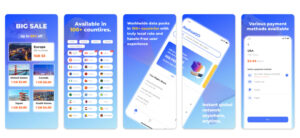
Many carriers and travel esim providers now let me skip QR codes completely and activate through an app. I like this approach because everything is handled with a few taps.
How I use a carrier app
Here is how the flow usually looks:
- I download the carrier or esim provider app from the App Store.
- I create or sign in to my account.
- I choose a plan and confirm payment.
- I select Install esim or Add to iPhone inside the app.
- I accept the on screen prompts from iOS to add the new cellular plan.
The plan then appears under Settings → Cellular without any separate QR code step.
How automatic setup works on new iPhones
When I set up a new iPhone for the first time, iOS sometimes offers to transfer my existing esim from my previous iPhone. In that case I:
- Place both iPhones close together.
- Follow the on screen instructions to transfer the plan.
- Confirm on the old iPhone that I want to move the esim.
- Wait for activation to finish on the new phone.
This automatic method saves time when I upgrade my device but want to keep the same carrier and number.
When I prefer this method
I choose the app or automatic setup method when:
- I buy a short term travel plan from a digital provider.
- I do not want to deal with printed QR codes.
- I am migrating from one iPhone to another.
It feels modern and usually gives me better control, since most apps include usage statistics, top up options, and easy plan changes.
How To Manage Multiple eSIMs and Set Default Lines
Once I have more than one esim on my iPhone, I start to treat the phone like a small control center. I want clear rules for which line does what, so I do not miss important calls or burn through the wrong data plan.
How I view and rename lines
I go to Settings → Cellular and look at the list of plans. I tap each plan and give it a label such as Personal, Work, or Travel. I find that these labels save me from expensive mistakes when roaming.
How I set my default voice line
To choose which line I use for most calls and texts, I:
- Open Settings → Cellular.
- Tap Default Voice Line or similar.
- Pick the line I want to use by default.
If I need to choose a different line for a particular call, I can do that from the dialer before I hit call.
How I choose the data line
For mobile data, I:
- Open Settings → Cellular.
- Tap Cellular Data.
- Select the line I want to use for data.
- Turn Allow Cellular Data Switching on or off depending on whether I want the phone to use another line when the main one has weak coverage.
When I travel, I normally set the travel esim as the data line and keep my home line for calls and messages only.
How I turn lines on or off
If I only need a line sometimes, I do not delete it. I simply:
- Tap the line name under Settings → Cellular.
- Toggle Turn On This Line off or on as needed.
This gives me flexible control over costs and coverage while still keeping everything stored on the same iPhone.
Troubleshooting Common eSIM Activation Problems on iPhone
Even when I follow all the steps correctly, esim activation can still fail. When that happens, I move through a short checklist instead of guessing.
When the plan does not appear
If the new esim does not show up after I scan a QR code or use the app, I try this:
- I restart the iPhone.
- I open Settings → Cellular again and check if the plan quietly appeared.
- I confirm that I am connected to Wi Fi or mobile data.
- I check that the QR code or activation code has not expired.
If nothing appears, I contact the carrier support because the profile might need to be reissued.
When there is no service
If the esim activates but shows No Service or SOS only, I:
- Toggle Airplane Mode on and off.
- Check that the correct line is set as active under Settings → Cellular.
- Confirm that roaming is enabled if I am abroad and my plan allows roaming.
- Check for carrier settings updates under Settings → General → About and tap Update if offered.
When data does not work
If voice calls work but data does not, I:
- Confirm that the correct line is selected under Cellular Data.
- Turn mobile data off and back on.
- Reset network settings by going to Settings → General → Transfer or Reset iPhone → Reset → Reset Network Settings.
After a network reset, I re enter Wi Fi passwords, but this often clears stubborn esim issues.
When nothing helps
If all basic fixes fail, I reach out to the carrier and clearly explain that I am using an esim on an iPhone. I provide the error message, my iPhone model, and the iOS version. This usually speeds up the support process and gets me to someone who understands esim configurations.
Conclusion
Switching to an esim on iPhone changed the way I handle mobile service at home and while traveling. I no longer worry about losing physical sims, and I can add or remove plans in minutes from anywhere in the industry.
When I activate an esim, I always follow the same flow. I confirm that my iPhone and carrier support esim. I prepare the device with updates and a stable connection. I then choose the method that fits my situation best, whether that is converting an existing sim, scanning a QR code, or using a carrier or travel app.
Once the esim is active, I take a moment to organize my lines, set clear defaults, and test calls and data. With those steps, my iPhone becomes a flexible, global ready device that works the way I need it to, without extra plastic or complexity.
If you follow the same approach, you will find that learning how to activate an esim on iPhone is not just a technical chore. It becomes a practical upgrade to how you stay connected wherever you go.